• Company
    • About Us
    • Case Studies
    • Press Center
    • Careers
    • Blog
    • Contact us
  • Contact us
  • Login
 
  • English
    • Deutsch
    • Español
    • Français
    • Italiano
    • Português
Paessler
                    - The Monitoring Experts
  • Products
    • Paessler PRTG
      Paessler PRTGMonitor your whole IT infrastructure
      • PRTG Network Monitor
      • PRTG Enterprise Monitor
      • PRTG Hosted Monitor
      • PRTG UVexplorer
      • PRTG extensionsExtensions for Paessler PRTGExtend your monitoring to a new level
    • Icon Features
      FeaturesExplore all monitoring features
      • Maps & dashboards
      • Alerts & notifications
      • Multiple user interfaces
      • Distributed monitoring
      • Customizable reporting
  • Solutions
    • Industries
      IndustriesMonitor various industry sectors
      • Industrial
      • Healthcare
      • Data Center
      • Education
      • Finance
      • Government
    • IT Topics
      IT TopicsMonitor all areas of IT
      • Network Monitoring
      • Bandwidth Monitoring
      • SNMP Monitor
      • Network Mapping
      • WiFi Monitoring
      • Server Monitoring
  • Pricing
  • Resources
    • Getting Started
      Getting StartedModules for self-paced learning
    • How-to Guides
      How-to GuidesGet the most out of PRTG
    • Videos & Webinars
      Videos & WebinarsLearn from Paessler experts
    • IT  Knowledge
      IT KnowledgeExpand your IT knowledge
    • PRTG Manual
      PRTG ManualFull documentation
    • Knowledge Base
      Knowledge BaseShare community knowledge
    • PRTG Sensor Hub
      PRTG Sensor HubGet sensors, scripts & templates
    • Trainings
      PRTG TrainingLearn how to work with PRTG
  • Partners
    • Icon Handshake
      Become a PartnerFor resellers and channel partners
    • Icon MSP
      Become an MSPDeliver monitoring as a managed service
    • icon partner
      Partner PortalLog in to your partner account
    • Deal Registration
      Deal RegistrationRegister your sales opportunities
    • icon search
      Find a PartnerFind partners selling Paessler products
    • icon technology
      Technology AlliancesSee Paessler technology partnerships
    • Partner HubTools for Your Success
  • Company
    • About Us
    • Case Studies
    • Press Center
    • Careers
    • Blog
    • Contact us
  • Contact us
  • Login
  • English
    • Deutsch
    • Español
    • Français
    • Italiano
    • Português
  • Get a quote
  • Free trial

Complete Windows Monitoring 

Keep your Windows servers, workstations, and critical services under control. Spot problems before your users do. 

Free download
PRODUCT OVERVIEW

How Do You Monitor Windows Servers and Services Without Agents on Every Machine?

Windows infrastructure monitoring means keeping track of a lot of moving parts: servers, workstations, services, event logs, application health, and distributed sites. The challenge is doing that without deploying and maintaining agents on every machine, and without manually correlating data across separate tools when something goes wrong.

Paessler PRTG connects to Windows systems via WMI and performance counter APIs, giving you real-time visibility into CPU load, memory, disk I/O, service status, event logs, and application health across your entire environment with it’s out-of-the-box network discovery. Custom PowerShell scripts extend coverage to whatever built-in sensors don't cover out of the box.

Supported Windows environments and technologies: Windows Server (2016, 2019, 2022, 2025), Windows 10, Windows 11, Active Directory, Hyper-V, IIS, SQL Server, Microsoft Exchange, file servers, DNS, DHCP monitoring, Remote Desktop Services, Azure hybrid environments, WMI, performance counters, event logs, Windows services, Windows Update status

Download PRTG Trial

What you will find on this page

  • Total Visibility Into Your Environment
  • How PRTG Monitors
  • PRTG vs. Manual Windows Monitoring
  • FAQs

PRTG is compatible with all major vendors, products, and systems

compatible with all major vendors, products, and systems

Total Visibility into Your Windows Environment

Catch CPU, Memory, and Disk Bottlenecks Before Performance Issues Surface

CPU spikes and memory leaks don't announce themselves. Performance degrades gradually, and by the time help desk tickets start arriving, the damage is already done. PRTG tracks CPU load, memory usage, disk I/O, and network traffic in real time using performance counters and WMI sensors. You set thresholds once. From that point on, PRTG watches continuously and alerts you the moment something starts trending the wrong way.

  • Real-time performance monitoring across all Windows servers and workstations using lightweight performance counter sensors
  • Customizable thresholds trigger alerts via email, SMS, or push notification when metrics cross warning levels
  • Trend dashboards and capacity planning reports forecast when you'll need additional resources
  • Correlation visualization shows how CPU monitoring data connects disk I/O to network saturation

Stop Windows Service Failures from Breaking Critical Business Applications 

A stopped Windows service can take down more than you'd expect. SQL Server stops, and an entire application stack goes offline. IIS application pools crash, Active Directory replication lags. These failures cascade quickly, and downtime from them adds up fast. Getting services back manually takes time you often don't have. PRTG's WMI Service sensor keeps continuous watch on service status, startup type, and dependencies across all your servers. The moment a critical service stops unexpectedly, you get notified. Not after someone complains. Immediately.
  • Windows service sensors monitor status and dependencies across all servers with instant failure alerts
  • Configure object dependencies to pause monitoring on dependent systems when a parent device is down, preventing false alarms and alert storms
  • Notification actions can trigger PowerShell scripts or executables when alerts fire, enabling automated responses like service restarts
  • Uptime SLA reporting tracks service availability over time to support business continuity planning
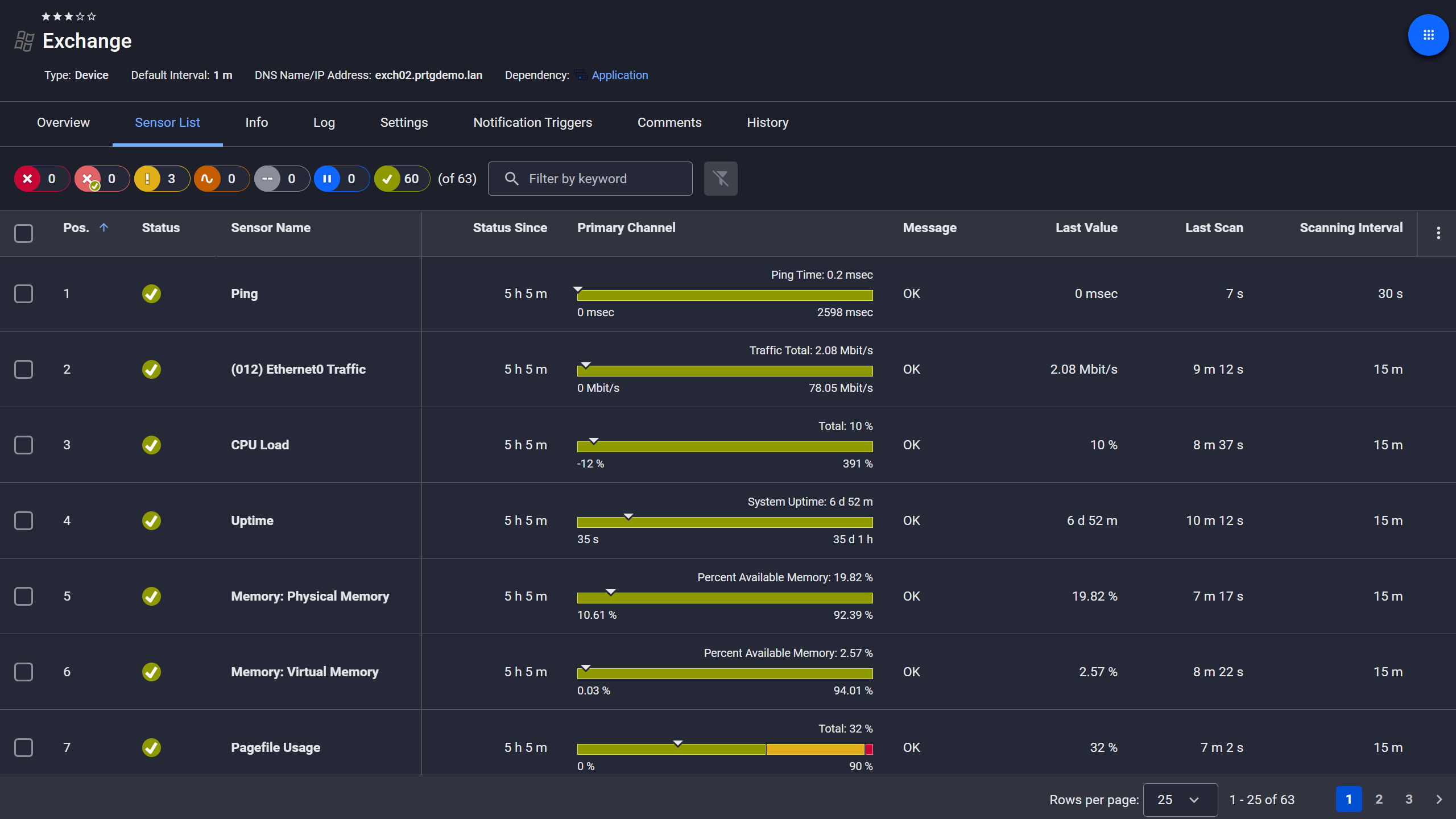
PRTG device view showing sensor list for a monitored Microsoft Exchange server

Exchange server, fully under control

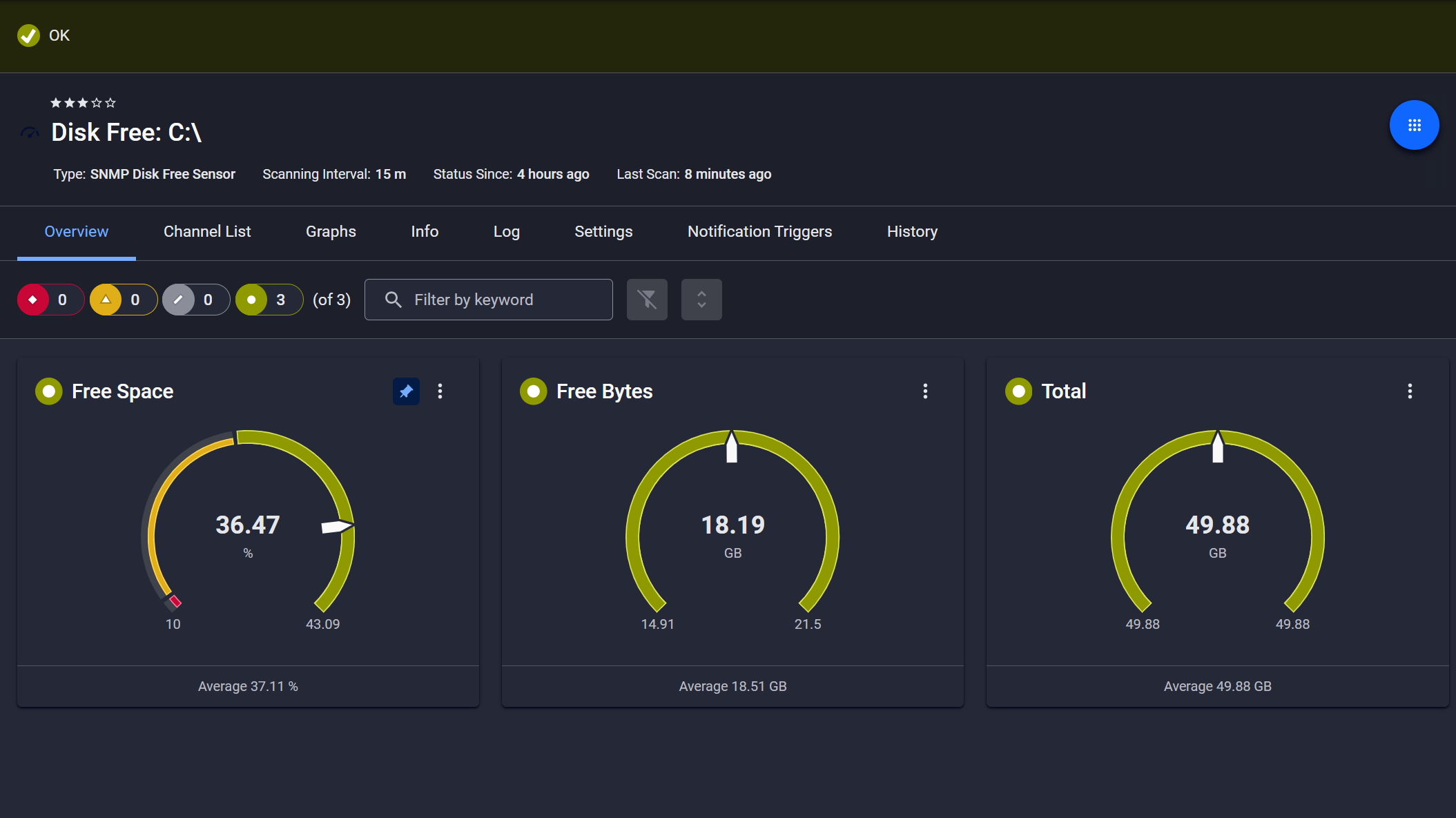
PRTG SNMP Disk Free sensor showing free space, free bytes, and total disk capacity gauges

Disk space monitored, alerts ready

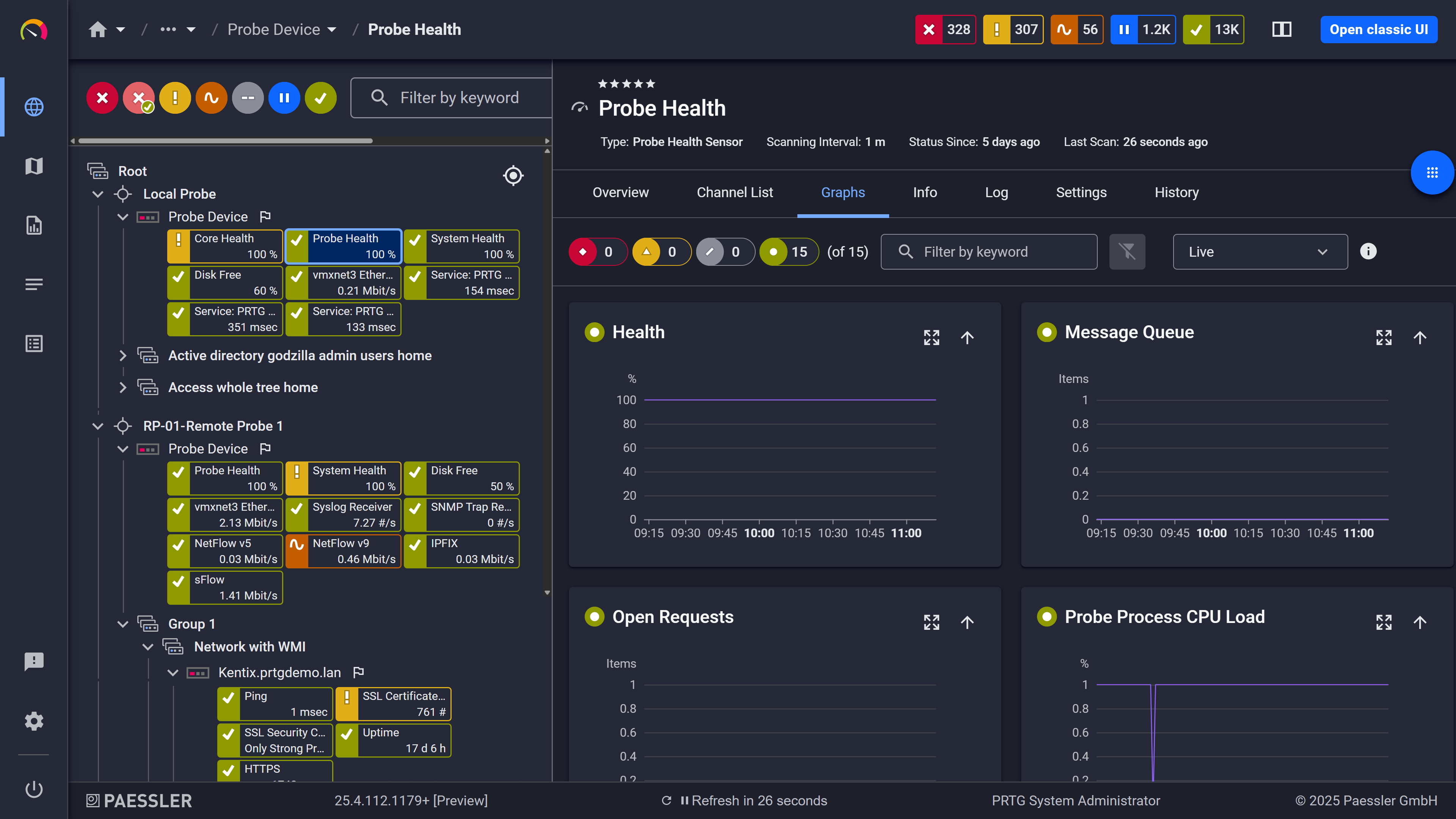
PRTG web interface showing live performance graphs for a Probe Health sensor

Live graphs, real-time performance data

Filter Event Log Noise and Surface Critical Errors

Windows event logs are relentless. Thousands of entries every day, most of them irrelevant. The real question is whether critical errors are actually getting noticed or just buried in the noise. Most teams either ignore logs entirely or spend hours digging through them reactively after something breaks. PRTG's Event Log sensor monitors System, Application, and Security logs with precise filters. Specific event IDs, severity levels, event sources. You define what matters, and PRTG alerts you when it happens. Failed backups, security incidents, service crashes. Nothing else gets through.

  • Event log sensors track System, Application, Security, and custom logs with precise filtering
  • Automated alerts notify you when critical events appear (failed logins, service crashes, security warnings)
  • Audit trail retention supports compliance reporting (SOC 2, ISO 27001, HIPAA) and security investigations
  • Cross-system correlation links event log alerts directly to related performance metrics for faster troubleshooting

See Why IT Professionals Trust PRTG

Start monitoring your infrastructure in minutes. No professional services, no complex configuration, no risk.

Free download
PRODUCT OVERVIEW

Gain Unified Visibility Across Distributed Windows Infrastructure and Hybrid Environments 

Branch offices and Azure environments tend to become infrastructure monitoring blind spots. Not because anyone planned it that way, but because separate monitoring tools end up covering separate locations, and correlating data manually across them isn't realistic at scale. PRTG's remote probe architecture handles this directly. Probes run locally at each site, handle monitoring tasks there, and report back to the central server via encrypted connections. On-premises servers, remote sites, and Azure-hosted Windows VMs. One platform, one set of dashboards, full observability.
  • Remote probes monitor branch offices locally and report to central PRTG server via encrypted connections
  • Distributed architecture minimizes WAN traffic by processing monitoring tasks locally at each site
  • Azure integration brings cloud-hosted Windows VMs into unified dashboards alongside on-premises infrastructure
  • Multi-site topology maps visualize dependencies across locations and show how regional failures impact operations
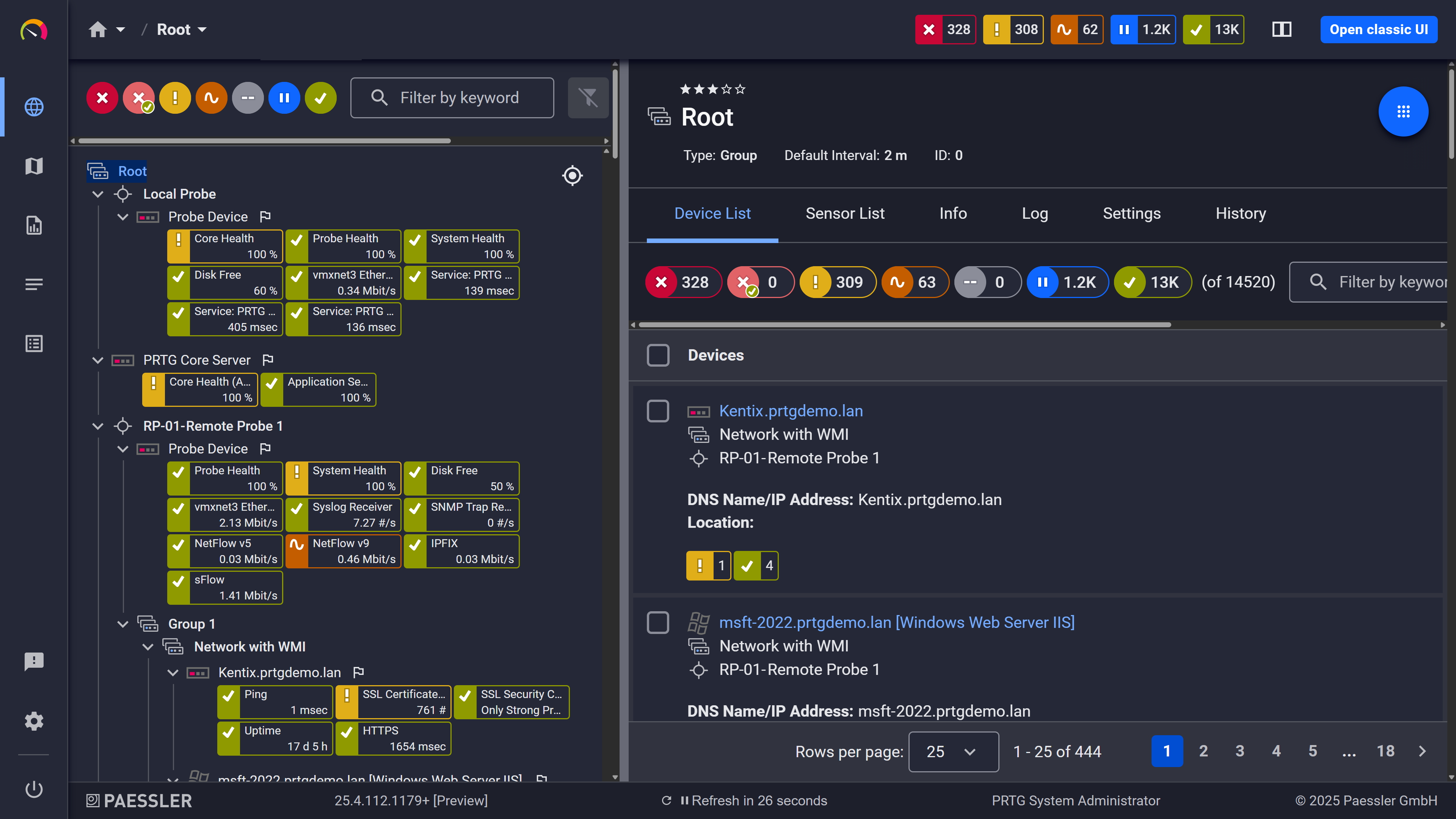
PRTG web interface showing device tree and full device list with sensor status badges

Full device list, instant overview

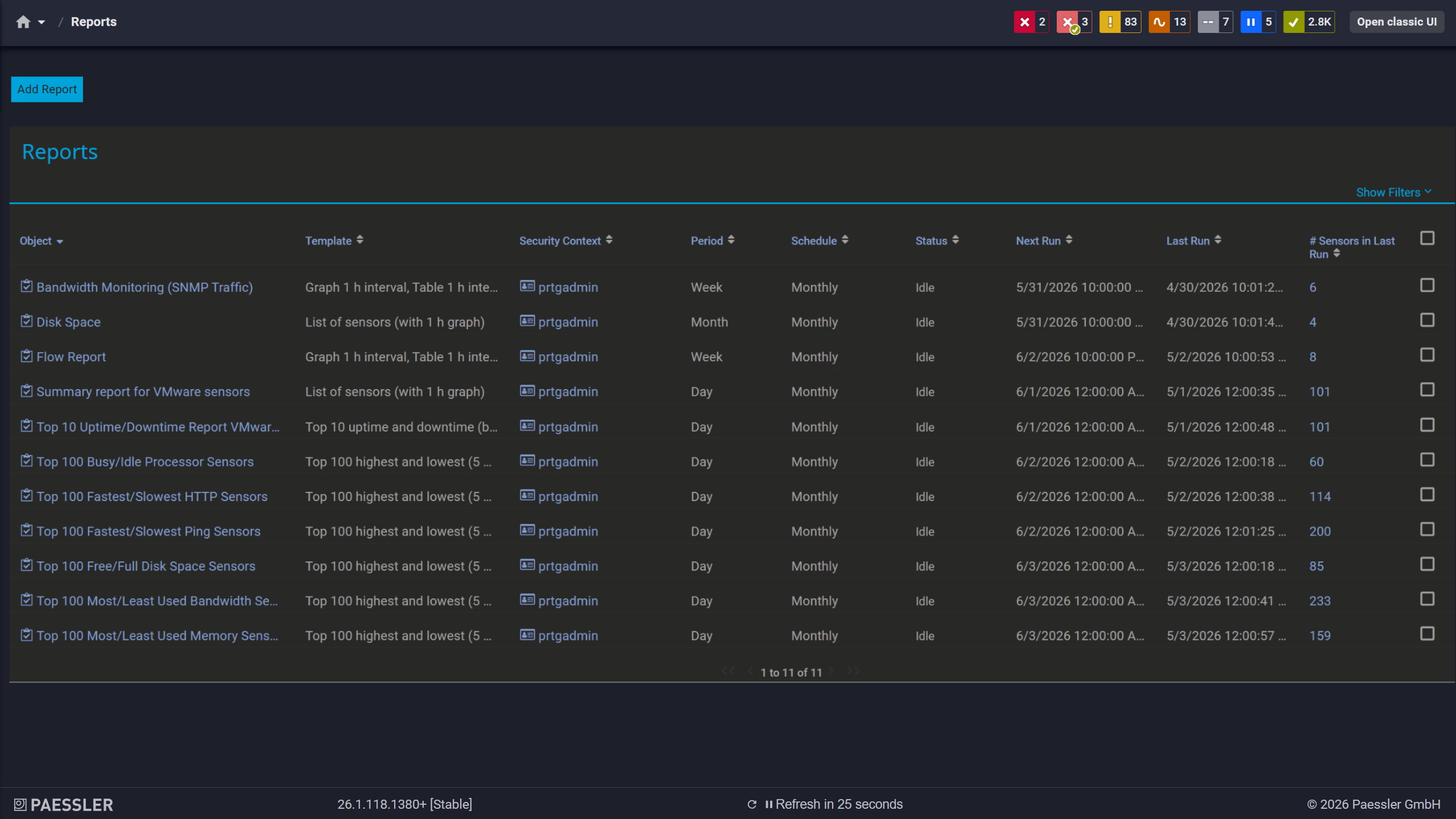
PRTG reports list showing scheduled monitoring reports with run times and sensor counts

Scheduled reports, always on time

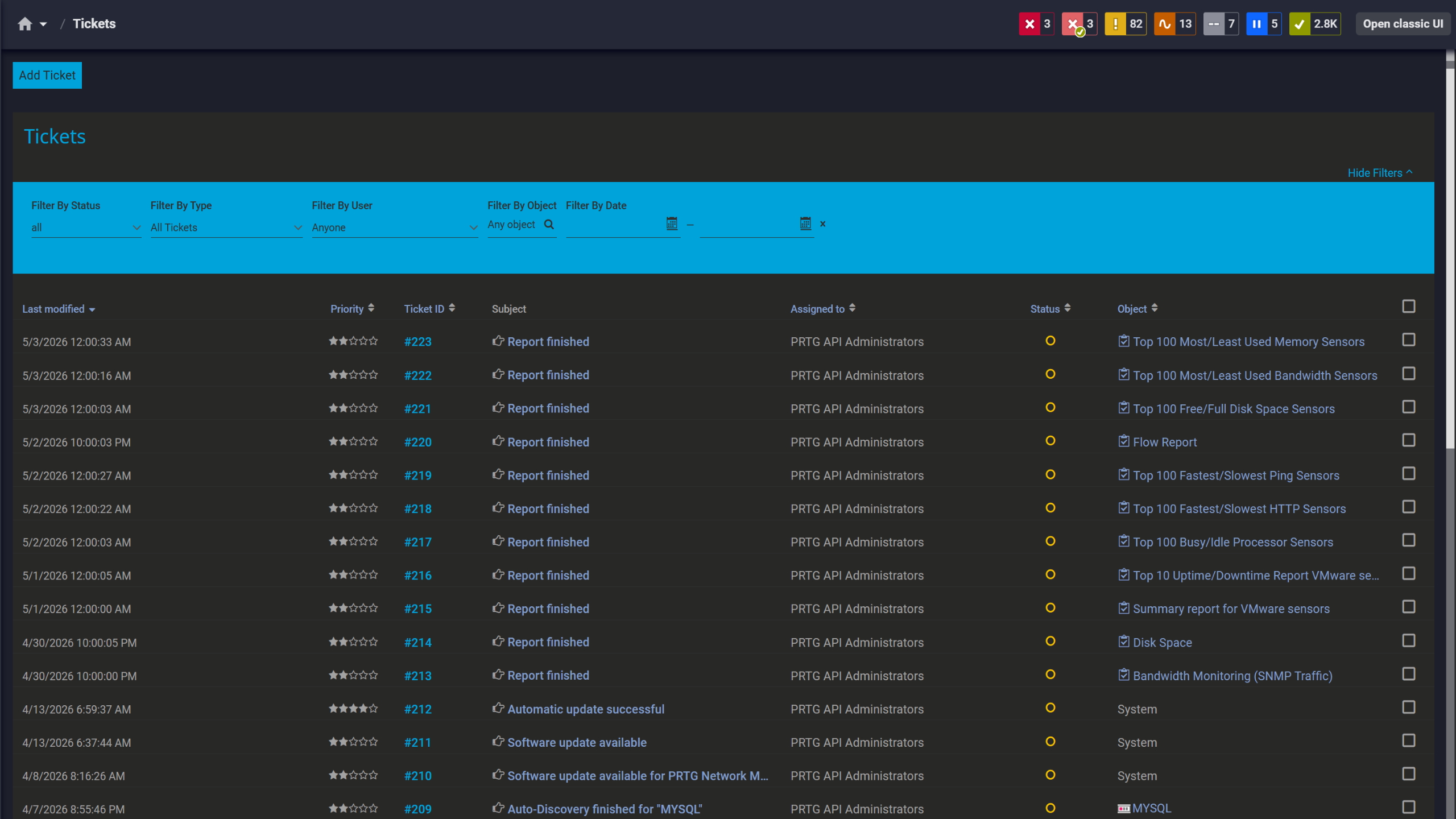
PRTG tickets list showing system notifications, report completions, and update alerts

Tickets keep your team aligned

Monitor Windows Applications and Business-Critical Services That Drive Your Operations 

A server can look perfectly healthy and still be causing problems. IIS application pools crash while operating system metrics look fine. Active Directory replication lags, authentication slows, users start complaining about login times. SQL Server query performance degrades under load. PRTG’s application monitoring goes beyond the OS layer. IIS, SQL Server, Hyper-V, Active Directory. You get visibility into whether the applications your business depends on are actually functioning, not just whether the underlying server is up.

  • Web server monitoring via IIS sensors tracks application pool state and worker process health
  • SQL Server sensors monitor database availability, connections, transaction logs, and memory metrics
  • Hyper-V sensors measure VM resource consumption, host performance, and cluster health
  • Active Directory monitoring tracks replication status, LDAP response times, and authentication health
  • Custom PowerShell sensors extend monitoring to proprietary applications and business-specific workflows

How PRTG Monitors Windows Environments 

PRTG uses several monitoring technologies depending on what you're tracking and how your environment is structured. No agents required on every device. Here's a breakdown of how it actually works.

Performance Counter Monitoring 

Performance counters are PRTG's primary method for Windows monitoring and Windows processes, and for good reason. They're lightweight, efficient, and pull real-time data directly from the OS with minimal overhead. CPU usage, memory consumption, disk I/O, network traffic, application-specific metrics. All of it available with granular precision. PRTG sensors default to performance counters and automatically fall back to WMI when counters aren't available. That hybrid behavior means broad compatibility without sacrificing efficiency. For most Windows server performance and workstation monitoring scenarios, performance counters are the right starting point.

WMI Monitoring

WMI covers the scenarios that performance counters can't. Services, processes, event logs, logical disks, hardware sensors. Nearly any Windows component is accessible through WMI, which makes it extremely flexible for monitoring service status, running custom queries, or checking hardware health. The trade-off is overhead. WMI is more resource-intensive than performance counters, and PRTG recommends keeping WMI sensor counts below roughly 200 per probe. In larger environments, distribute the load across multiple remote probes.

Event Log Monitoring 

PRTG's WMI Event Log sensor queries Windows Event Logs continuously across System, Application, Security, and custom channels. Filters apply based on event ID, severity, source, or keyword. You decide what triggers an alert. A practical example: configure PRTG to notify when Event ID 1074 (unexpected shutdown) appears, or when failed login attempts exceed a defined threshold. Historical event log data is retained per your configured retention policies, which makes post-incident analysis and compliance reporting significantly less painful.

PowerShell Script Sensors

Built-in sensors don't cover everything. For scenarios outside their scope, PRTG supports PowerShell Script sensors and EXE/Script sensors. Scripts run on the PRTG probe, retrieve data from target systems, and return structured results in XML or JSON format. You can use .NET libraries, Windows APIs, and PowerShell modules like Active Directory, Exchange for email monitoring, or VMware PowerCLI. Anything accessible through PowerShell is effectively monitorable. This makes custom script sensors the practical choice for proprietary applications and business-specific health checks that don't fit standard sensor templates.

Remote Probe Monitoring

Remote probes are how PRTG handles branch offices, DMZs, and sites without direct network connectivity. Each probe is a lightweight Windows service that runs locally, handles WMI queries, reads performance counters, and runs PowerShell scripts on-site. Results go back to the core server over an encrypted, outbound-only connection. WAN traffic stays minimal, and systems that aren't directly accessible from headquarters are still covered. One limitation worth noting: certain sensors, like Hyper-V Host sensors and some Microsoft Exchange PowerShell sensors, won't run on hosted probes. Those require a local probe or a full PRTG installation at the site.

free downLoad

PRTG vs. Manual Windows Monitoring

FEATURE

Manual

Manual

PRTG

PRTG

Monitor Windows Server CPU, memory, and disk performance

Manual
not included

Log into each server individually. Open Performance Monitor or Task Manager. Check current utilization manually. Export to spreadsheets. Repeat for every server. Correlate data across systems by hand.

PRTG
included

Automated performance counter sensors track CPU, memory, disk I/O, and network metrics across all servers. Server monitoring software with centralized dashboards that provide real-time visualization, historical trending, and threshold-based alerting.

Track Windows service status across your IT infrastructure

Manual
not included

RDP into each server. Open Services console (services.msc). Check critical services manually. Note failures. Maintain a spreadsheet to track state over time.

PRTG
included

WMI Service sensors monitor service status, startup type, and dependencies across all servers automatically. Instant alerts when critical services stop. Dependency mapping shows downstream impact.

Monitor Windows Event Logs for critical errors and security events

Manual
not included

Open Event Viewer on each server. Filter through thousands of entries. Search manually for specific event IDs or error patterns. Export relevant events. Correlate across servers.

PRTG
included

Event Log sensors continuously monitor System, Application, and Security logs with customizable filters. Alert on critical events automatically. Centralized visibility reduces troubleshooting time significantly.

Check Windows Update status and patch compliance

Manual
not included

Log into each server and workstation. Open Windows Update. Check pending updates and last installation date. Document status manually. Repeat monthly.

PRTG
included

Windows Update sensors automatically track patch status, pending updates, and last successful installation. Compliance reports generated automatically. Alerts on missing critical patches.

Monitor distributed Windows infrastructure across branch offices and cloud

Manual
not included

Maintain separate monitoring solutions per location. VPN into branch offices to check servers. Log into Azure Portal separately for cloud VMs. Correlate data across locations manually.

PRTG
included

Centralized control covers on-premises servers, branch office systems, and Azure VMs from one platform. Encrypted remote probe connections eliminate VPN dependency. Cross-site topology maps visualize enterprise-wide dependencies.

free downLoad

We have found these sophisticated levels of monitoring to be highly effective, improving the end user’s experience of the systems and applications in use, giving us the opportunity to provide a proactive resolution rather than having the end user raise issues.

Saif Akil, Head of Service Management
Acurus

“Before PRTG, applications and hardware all gave messages, but all separately, so we had to search through hundreds of e-mails to find the problem. It was always only afterwards that we saw that something was going on within the infrastructure. To mitigate the issue, we also considered other software. PRTG stood out because of its user-friendliness, flexibility and minimal consultancy investment.”

Wim Vandenberghe, ICT Manager
Soenen Golfkarton

PRTG gives a birds-eye view of your network to troubleshoot problems or look at systems in their entirety that other solutions cannot – and I have looked at all of them.

Colin Metzler, Cybersecurity Analyst
Dayton Children’s Hospital

Paessler PRTG Network Monitor licenses & pricing

Choose the PRTG Network Monitor subscription that's best for you.

License NameLicense descriptionPriceLicense DetailsGet startedPricing Details
PRTG 500$200per month paid annuallyBuy nowBuy now

Enough to monitor multiple aspects of 50 devices

PRTG 1000$358per month paid annuallyBuy nowBuy now

Enough to monitor multiple aspects of 100 devices

PRTG 2500$742per month paid annuallyBuy nowBuy now

Enough to monitor multiple aspects of 250 devices

PRTG 5000$1,300per month paid annuallyBuy nowBuy now

Enough to monitor multiple aspects of 500 devices

PRTG 10000$1,642per month paid annuallyBuy nowBuy now

Enough to monitor multiple aspects of 1000 devices

Over 100,000 Customers Worldwide Love Paessler  

customer success stories

 Windows Monitoring: Frequently Asked Questions


What versions of Windows does PRTG support for monitoring?

PRTG covers Windows 10 and 11 on the workstation side, and Windows Server from 2008 R2 through 2022. Most sensors support 2008 R2 and later, though some functionality, like specific Hyper-V sensors or certain PowerShell-based sensors, requires newer server versions. The PRTG core server and probes themselves need Windows Server 2016 or later. If you're working with older or unusual configurations, check the individual sensor documentation in the PRTG manual. Compatibility specifics vary by sensor.  

How many Windows systems can PRTG monitor, and how is licensing structured?

PRTG licensing is sensor-based, not device-based. That distinction matters. A typical Windows server uses somewhere between 10 and 30 sensors depending on what you're tracking: CPU, memory, disk, network, services, event logs, applications. License tiers run from 100 sensors up through 500, 1,000, 2,500, 5,000, and unlimited XL options. There's also a free version capped at 100 sensors, which works well for testing or smaller environments.

Does PRTG require agents installed on every Windows system?

No. PRTG uses agentless monitoring via WMI, Performance Counters, SNMP, and PowerShell. What you do need: WMI and Remote Registry services enabled on target systems, plus appropriate Windows credentials configured in PRTG. Domain credentials are the cleaner option for larger environments. No per-device software to deploy, patch, or maintain.

Can PRTG monitor Windows services, and will it alert me immediately if a critical service stops?

Yes, and the alert is immediate. PRTG's WMI Service sensor monitors service status, startup type, and dependencies in real time. You define which services matter: SQL Server, IIS, Active Directory, custom application services. The moment something stops unexpectedly or changes state, notifications go out via email, SMS, push notification, or your ITSM system. Dependency tracking shows which downstream applications are affected, so you're not left guessing about the scope of impact.

How does PRTG monitor Windows systems in hybrid environments with on-premises servers and Azure cloud VMs?

On-premises systems use WMI, Performance Counters, and PowerShell sensors. For Azure-hosted Windows VMs, you have two options. Azure API sensors track cloud-level metrics like VM status and resource consumption. Alternatively, if network connectivity allows via VPN, ExpressRoute, or public IP with appropriate firewall rules, you can treat the Azure VM as a standard Windows system and monitor it directly with WMI and Performance Counters. Either way, both environments show up in the same PRTG dashboards with the same alerting and reporting.

What's the difference between WMI sensors and Performance Counter sensors, and which should I use?

Performance Counters are faster and more efficient. Use them for CPU, memory, disk I/O, network traffic, and application-level metrics like IIS and SQL Server. Low overhead, high granularity, real-time data. WMI covers the scenarios Performance Counters can't handle: Windows services, event logs, hardware details, custom queries. The trade-off is overhead. In larger environments, PRTG recommends keeping WMI sensor counts below roughly 200 per probe and distributing load across multiple probes. PRTG sensors default to Performance Counters and fall back to WMI automatically when needed, so in many cases the choice is made for you.

Paessler PRTG

Paessler PRTG

Network Monitoring Software – Version 26.1.116.1532 (February 9th, 2026)

Hosting icon

Hosting

Download for Windows and cloud-based version PRTG Hosted Monitor available

Languages icon

Languages

English, German, Spanish, French, Portuguese, Dutch, Russian, Japanese, and Simplified Chinese

test

Monitor everything

Network devices, bandwidth, servers, applications, virtual environments, remote systems, IoT, and more

test

Pricing

Choose the PRTG Network Monitor subscription that's best for you

Discover more monitoring insights and stories

Content illustration

Powerful stories from the monitoring world

  • Monitoring Windows DHCP With PRTG - Paessler Blog
  • Never Miss a Patch Again: How to Monitor Windows Updates Across ...
  • Video: Windows sensors in PRTG - Paessler
Support illustration

Resources to master your monitoring challenges

  • Device and Sensor Setup
  • How can I propose new features or sensors for PRTG?
  • How can I speed up PRTG—especially for large installations?
Solution illustration

Solutions for all your monitoring needs

  • Windows Monitoring
  • Windows Service Monitoring
  • Windows Server Monitoring
PRTG Logo

Start Monitoring with PRTG and see how it can make your network more reliable and your job easier.

Free download
PRODUCT OVERVIEW

Products

  • Paessler PRTG
    Paessler PRTGMonitor your whole IT infrastructure
    • PRTG Network Monitor
    • PRTG Enterprise Monitor
    • PRTG Hosted Monitor
    • PRTG UVexplorer
    • PRTG extensions
      Extensions for Paessler PRTGExtend your monitoring to a new level
  • Icon Features
    FeaturesExplore all monitoring features

Monitoring with PRTG

  • Network monitoring
  • Bandwidth monitoring
  • SNMP monitoring
  • Network mapping
  • Wi-Fi monitoring
  • Server monitoring
  • Network traffic analyzer
  • NetFlow monitoring
  • Syslog server

Useful Links

  • PRTG Manual
  • Knowledge Base
  • Customer Success Stories
  • About Paessler
  • Subscribe to newsletter
  • PRTG Support
  • PRTG Consulting
  • PRTG Feedback & Roadmap

Contact

Paessler GmbH
Thurn-und-Taxis-Str. 14, 
90411 Nuremberg 
Germany

[email protected]

+49 911 93775-0

  • Contact us
©2026 Paessler GmbHTerms & ConditionsPrivacy PolicyImprintReport VulnerabilityDownload & InstallSitemap
How to run an auto-discovery in PRTG in 5 steps How to run an auto-discovery in PRTG in 5 steps How to run an auto-discovery in PRTG in 5 steps