
• Company
    • About Us
    • Case Studies
    • Press Center
    • Events
    • Careers
    • Blog
    • Contact us
  • Contact us
  • Login
 
  • English
    • Deutsch
    • Español
    • Français
    • Italiano
    • Português
Paessler
                    - The Monitoring Experts
  • Products
    • Paessler PRTG
      Paessler PRTGMonitor your whole IT infrastructure
      • PRTG Network Monitor
      • PRTG Enterprise Monitor
      • PRTG Hosted Monitor
      • PRTG extensionsExtensions for Paessler PRTGExtend your monitoring to a new level
    • Icon Features
      FeaturesExplore all monitoring features
      • Maps & dashboards
      • Alerts & notifications
      • Multiple user interfaces
      • Distributed monitoring
      • Customizable reporting
  • Solutions
    • Industries
      IndustriesMonitor various industry sectors
      • Industrial
      • Healthcare
      • Data Center
      • Education
      • Finance
      • Government
    • IT Topics
      IT TopicsMonitor all areas of IT
      • Network Monitoring
      • Bandwidth Monitoring
      • SNMP Monitor
      • Network Mapping
      • WiFi Monitoring
      • Server Monitoring
  • Pricing
  • Resources
    • Getting Started
      Getting StartedModules for self-paced learning
    • How-to Guides
      How-to GuidesGet the most out of PRTG
    • Videos & Webinars
      Videos & WebinarsLearn from Paessler experts
    • IT  Knowledge
      IT KnowledgeExpand your IT knowledge
    • PRTG Manual
      PRTG ManualFull documentation
    • Knowledge Base
      Knowledge BaseShare community knowledge
    • PRTG Sensor Hub
      PRTG Sensor HubGet sensors, scripts & templates
    • Trainings
      PRTG TrainingLearn how to work with PRTG
  • Partners
    • icon star
      New Partners and MSPBecome a new partner or MSP
    • icon partner
      Partner PortalLog in to your partner account
    • Deal Registration
      Deal RegistrationRegister your sales opportunities
    • icon search
      Find a PartnerFind partners selling Paessler products
    • icon technology
      Technology AlliancesSee Paessler technology partnerships
  • Company
    • About Us
    • Case Studies
    • Press Center
    • Events
    • Careers
    • Blog
    • Contact us
  • Contact us
  • Login
  • English
    • Deutsch
    • Español
    • Français
    • Italiano
    • Português
  • Get a quote
  • Free trial
  1. Home>
  2. Tools>
  3. Netflow Generator
Netflow Generator Logo


Simulating artificial NetFlow data streams for testing purposes

NetFlow Generator simulates Netflow v5 data streams and can be used to test the NetFlow functionality of PRTG Network Monitor and other NetFlow v5 compatible programs.
free download
Netflow Generator
Netflow Generator

Our Netflow Generator creates artificial NetFlow Version 5 data streams without the need for NetFlow compatible hardware. It is a perfect tool to test the NetFlow functionality of PRTG or other NetFlow compatible programs.

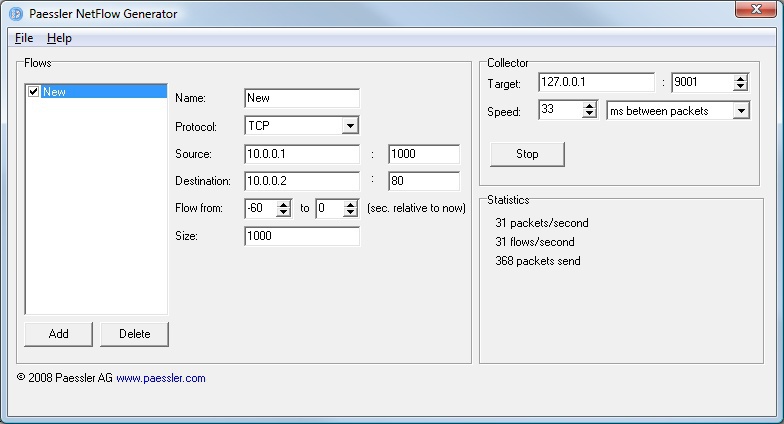
NetFlow Generator runs on a PC and sends NetFlow 5 Packets (via UDP) to a specific target computer which processes the data. You can create various patterns and loads of traffic. While the simulator is active, it will create NetFlow packets which contain information about the selected traffic pattern. These packets contain the same information as a router/switch would send if it saw the simulated traffic pattern (the simulated traffic itself is not generated).

Getting started

Please download the file and run the "NetflowGenerator.exe" program from the ZIP file. The basic features of the tool can all be edited in the main window as described below. After setting up the desired flows simply click "Start" to begin the simulation.

"Flows" Group

Here you can define one or more sets of flow streams. When the simulator is active it will create NetFlow packets which show the selected pattern (the simulated traffic itself is not generated). Use "add" to add new flows, use "delete" to delete flows.

The settings are:

  • "Name": is used for display purposes
  • "Protocol": defines the protocol of the simulated flow (the Netflow packets themselves are forwarded via UDP)
  • "Source / Destination": define the source / destination IP of the simulated flow.
    • when defining IP addresses, it is possible to use * wildcards and range syntax (value a - value b, e.g. 10.0.0.1-10.0.0.20)
    • when defining ports, it is possible to use range syntax (value a - value b, e.g. 8080-8086)
    • Note: When using range syntax a random value is selected
  • "Flow from": shows the relative time of the flow, based on the current time point - as such, "-60 -10" means the simulated flow started 1 minute ago and ended 10 seconds ago. This has to do with the active flow timeout, so that "old" flows can also be simulated.
  • "Size": defines the size of the stream (either define an individual value or us range syntax (the value is selected randomly))

"Collector" Group

In this section you can define the IP where the packets are supposed to be forwarded, i.e. the machine running the PRTG probe (or NetFlow Tester)

  • "Target": IP and TCP port of the program that waits for the NetFlow packets
  • "Speed": allows to define how quickly a packet is relayed. Each packet contains one entry per selected flow. There are 3 flow modes:
    • "ms between packets", which basically defines how many ms the simulator is to wait between packets, i.e.:

      1000 → 1 packet/s
      100 → 10 packets/s
      10 → 100 packets/s
      1 → 1000 packet/s
    • "1 ms sleep every x packets", which basically defines how many packets are to be sent before a 1 ms "sleep" mode, i.e.:

      1  → 1000 packets/s
      10  → 10000 packets/s
      100 → 100000 packets/s - this generates large loads. As such packets can get lost due to network overload or UDP packet drops.

      Note: The packets are sent depending on the host machine's capacity. Therefore, it is possible that the number defined is not reached (if the host machine's resources do not suffice)
    • "Busy Loop", which basically forwards packets continuously without a pause or entering a sleep mode. This mode forwards as many packets as possible, depending on the host machine's resources. The speed is entirely machine dependent and utilizes a core up to 100%. This mode is particularly interesting for use with virtual machines since small "sleep" modes often do not function properly in virtualized environments.

"Statistics" Group

This section provides information as regards how many data was forwarded to what target. Using the "Menu" option one can save / load various simulator configurations.

History

  • Version 1.0 - Nov 12th, 2008: Initial Release
Netflow Generator Logo
Free Dowload

Netflow Generator (0.4 MB)

This Freeware program is provided free for Paessler customers, mainly as a diagnostic tool for users of PRTG Network Monitor. Please understand that we can not provide support for the program.

Products

  • Paessler PRTG
    Paessler PRTGMonitor your whole IT infrastructure
    • PRTG Network Monitor
    • PRTG Enterprise Monitor
    • PRTG Hosted Monitor
    • PRTG extensions
      Extensions for Paessler PRTGExtend your monitoring to a new level
  • Icon Features
    FeaturesExplore all monitoring features

Monitoring with PRTG

  • Network monitoring
  • Bandwidth monitoring
  • SNMP monitoring
  • Network mapping
  • Wi-Fi monitoring
  • Server monitoring
  • Network traffic analyzer
  • NetFlow monitoring
  • Syslog server

Useful Links

  • PRTG Manual
  • Knowledge Base
  • Customer Success Stories
  • About Paessler
  • Subscribe to newsletter
  • PRTG Support
  • PRTG Consulting
  • PRTG Feedback & Roadmap

Contact

Paessler GmbH
Thurn-und-Taxis-Str. 14, 
90411 Nuremberg 
Germany

[email protected]

+49 911 93775-0

  • Contact us
©2025 Paessler GmbHTerms & ConditionsPrivacy PolicyImprintReport VulnerabilityDownload & InstallSitemap
MQTT MQTT MQTT