
- English
- Deutsch
- Español
- Français
- Italiano
- Português
Windows services are the backbone of most Microsoft environments. When DNS stops responding, IIS drops, or SQL Server hangs, the impact spreads fast and the diagnostic clock starts immediately. Continuous service status monitoring across servers and endpoints is how you catch those failures before they reach end users.
PRTG queries service status directly via WMI or SNMP, no agent required. The WMI Service sensor checks whether a specific service is running, stopped, or in an error state, and you identify services by display name or internal service name. Coverage includes IIS, SQL Server, DNS, Active Directory, Exchange Server, SharePoint, antivirus services, and custom applications. Supported systems: Windows Server 2008 R2 or later, plus Windows 10 and 11 endpoints, as long as the PRTG probe can reach them via WMI.

Manual checks don't scale. Across dozens of Windows servers and endpoints, staying ahead of service failures by logging in and looking isn't realistic. Also services can stop for all kinds of reasons: dependency failures, resource exhaustion, a patch that changed something it shouldn't have. By the time users start to report the issue, troubleshooting has already started too late.
PRTG's WMI Service sensor checks service status in real-time. The moment a service stops or enters an error state, notifications fire. You define which services matter, set the expected state, and the sensor handles continuous checking across your infrastructure. IT teams get time to investigate before end users notice anything.
Some service failures are transient. A brief memory spike, a network timeout, and the service is down until someone logs in to restart it. Outside business hours, that delay compounds.
PRTG connects notification triggers to PowerShell scripts to handle this automatically. When the WMI Service sensor first detects a stopped service, you can tell it to execute a predefined PowerShell script to attempt a service restart. PRTG logs the notification event on its side; any additional logging of the restart action itself must be handled within the script. This can run 24/7 and is an easy way to keep full control over which services get automatic restart and which require human review.
Worth noting: event log monitoring pairs well here. Combining the WMI Service sensor with the WMI Event Log sensor gives you the restart action and the context around why the failure happened in the first place.
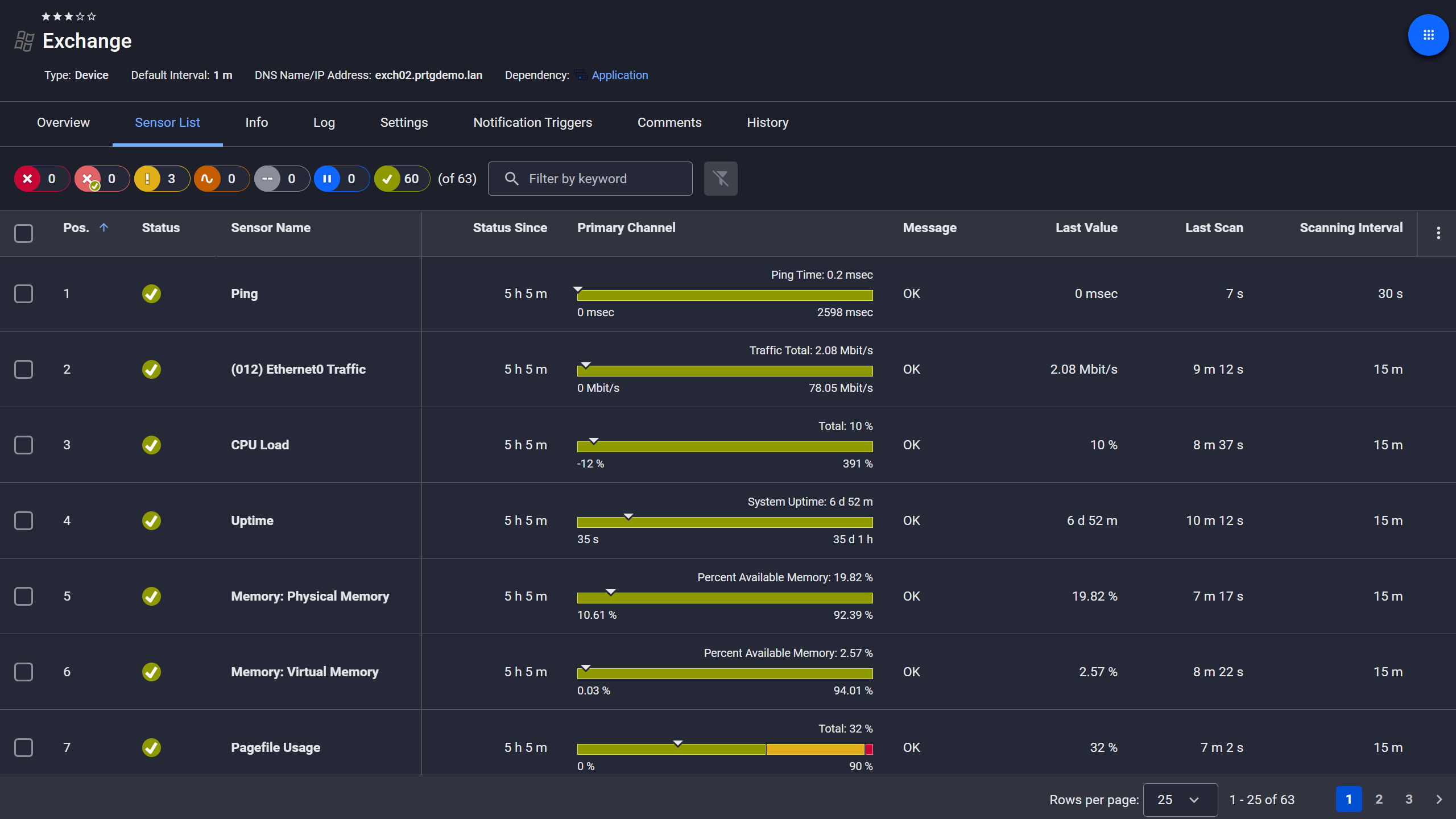
Exchange server, fully under control
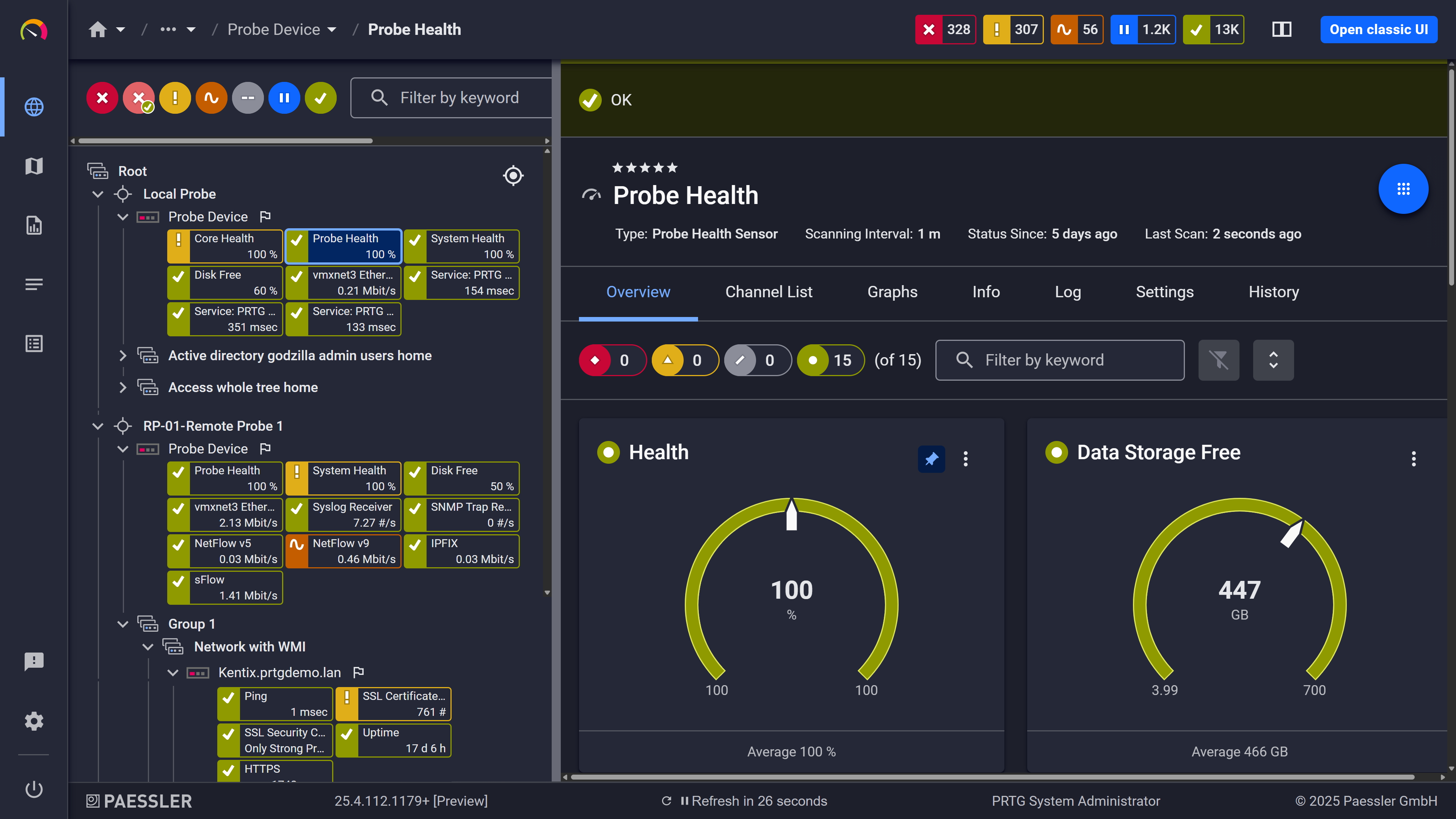
Probe health at a glance
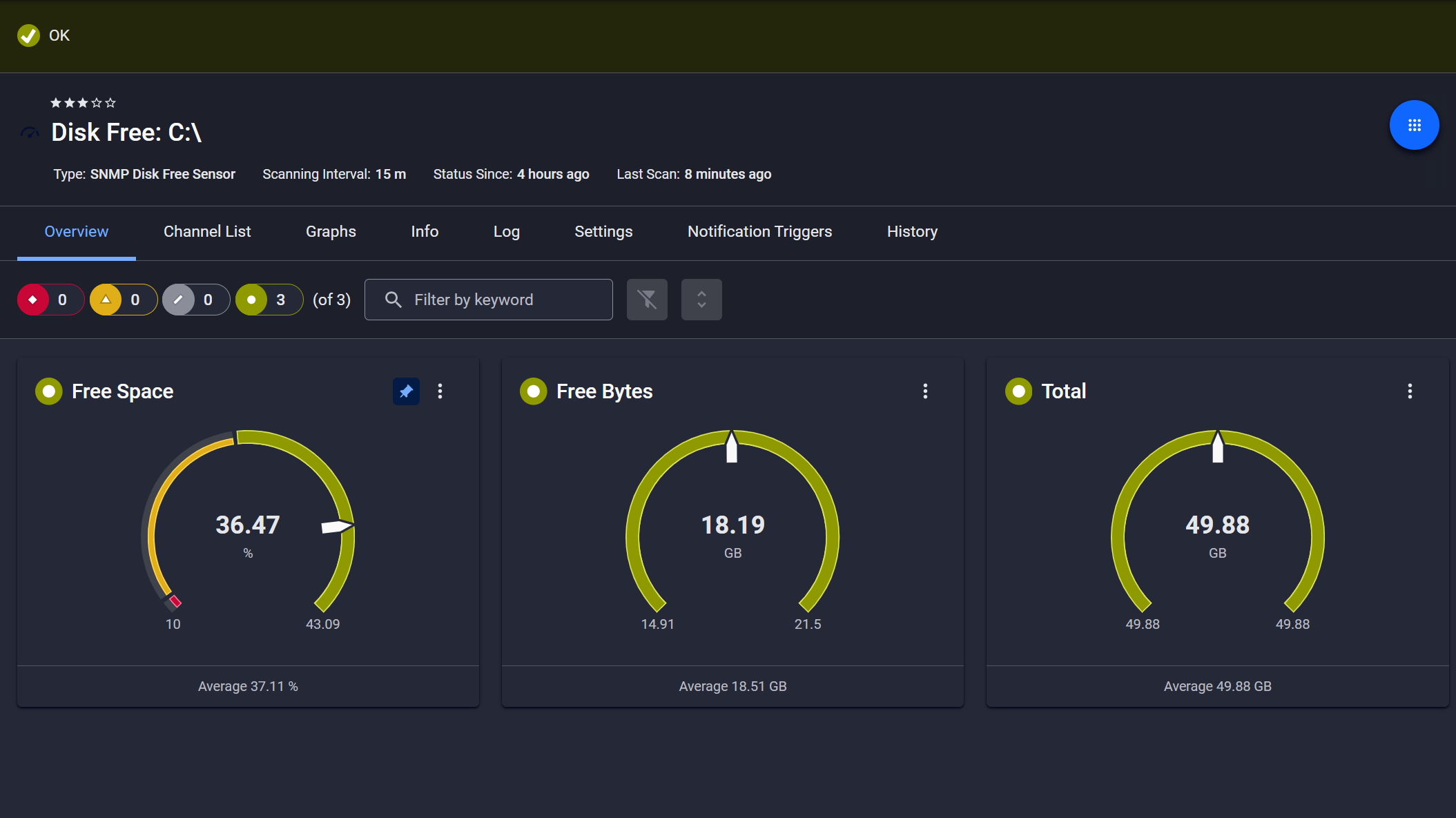
Disk space monitored, alerts ready
Start monitoring your infrastructure in minutes. No professional services, no complex configuration, no risk.
Running Windows infrastructure across regional offices or multiple data centers means the same service stack repeating everywhere: DNS, DHCP, file services, domain controllers. Getting centralized visibility without deploying agents or opening new firewall rules is the actual challenge.
PRTG handles this through a central installation with distributed remote probes at each site. The WMI Service sensor uses native Windows protocols, so there's nothing to install on monitored systems and no additional attack surface introduced. Active Directory replication, DNS servers, and file services across the network are all visible from one interface. For teams with local autonomy, each site is able run its own PRTG instance while corporate IT pulls aggregated views to their dashboard through the API.
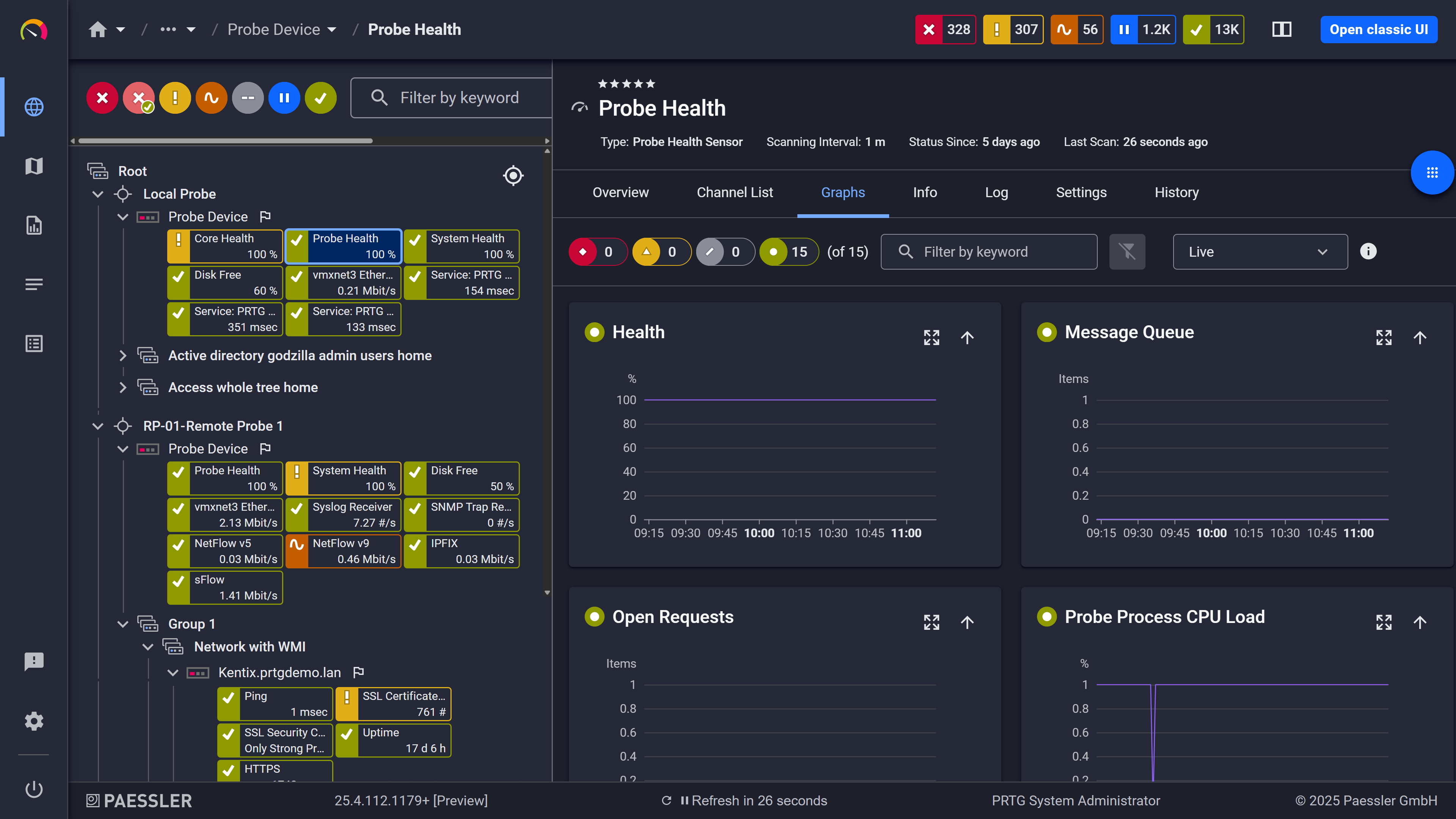
Live graphs, real-time performance data
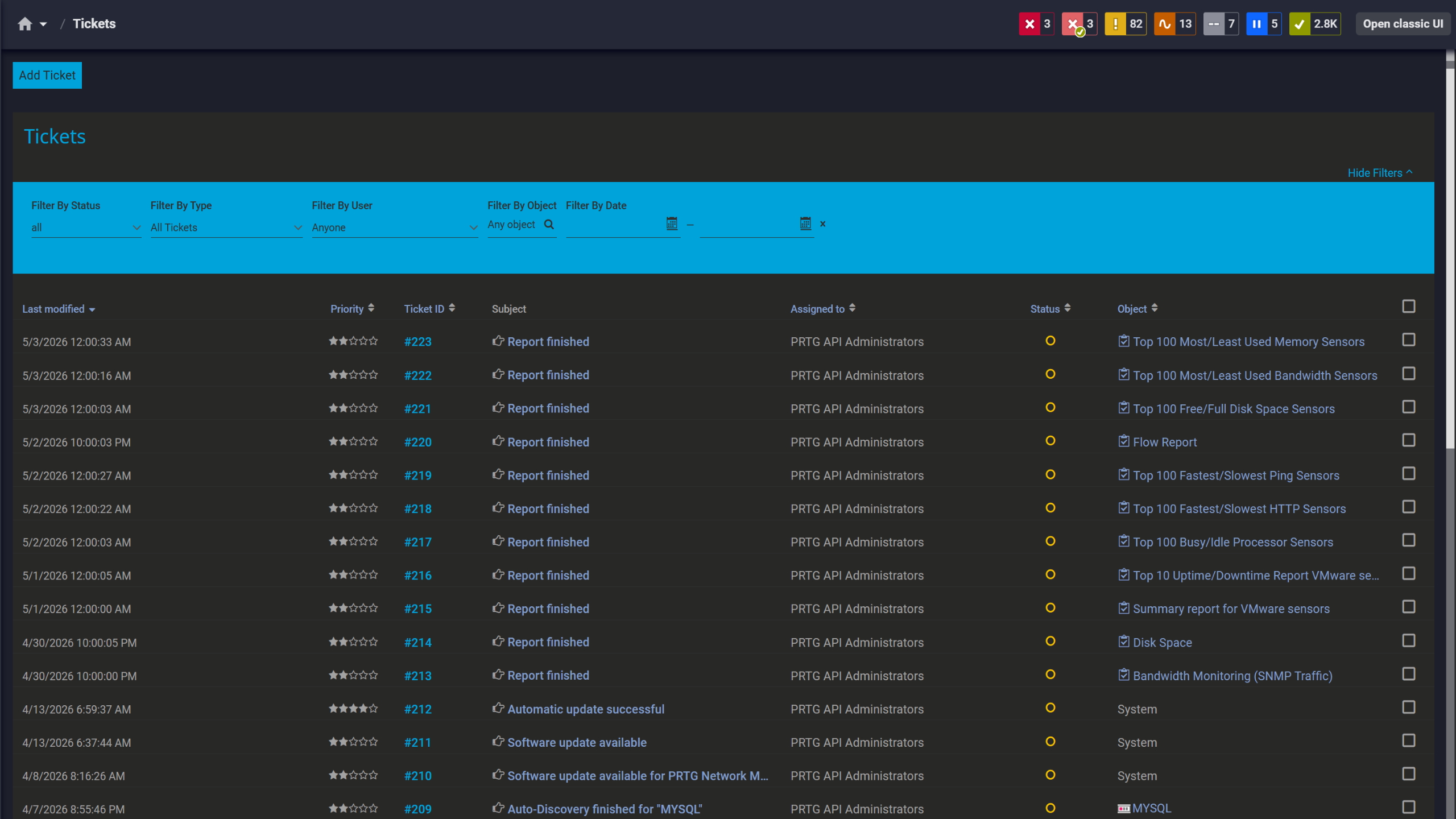
Tickets keep your team aligned
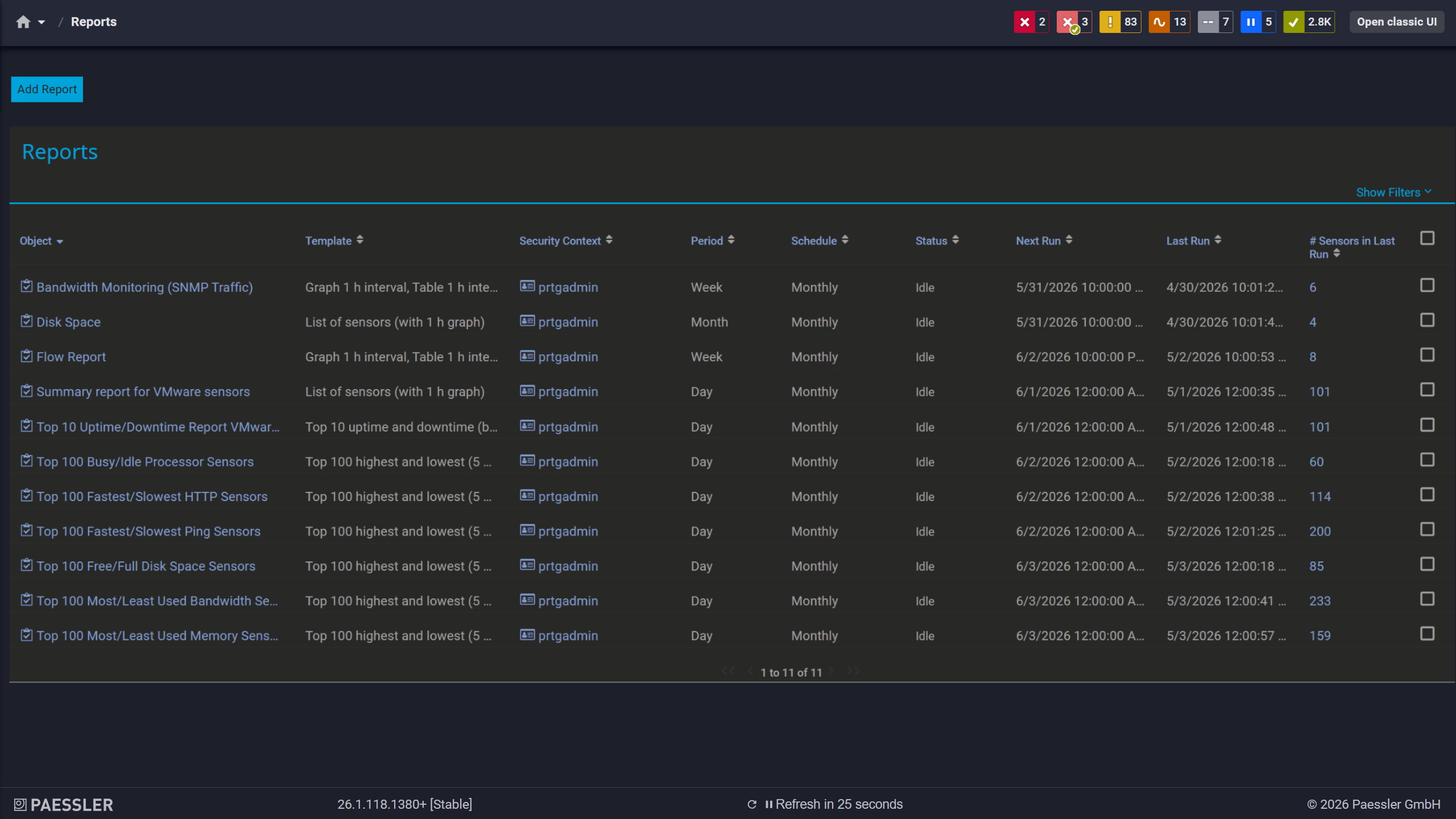
Scheduled reports, always on time
A service showing "Running" doesn't mean it's working. Services can hang or consume excessive CPU while still reporting active. Binary up/down monitoring misses this entirely.
PRTG combines service status with performance metrics from the same servers. The WMI Service sensor runs alongside CPU, memory, disk I/O, and event log sensors on the same device. When the SQL Server service is running but CPU hits 100%, both data points appear in context on the same dashboard. That correlation is usually the difference between spotting a performance bottleneck early and waiting for it to become an outage.
PRTG uses Windows Management Instrumentation (WMI) to query service status directly from the Windows operating system. Depending on the asset you want to monitor you can also use SNMP. No agent and no proprietary protocols required.
FEATURE | Manual Approach Manual Approach | With PRTG With PRTG |
|---|---|---|
Service Status Visibility | Manual Approach Log into each server, open Services console, scroll through the list | With PRTG Centralized dashboard shows all service statuses across infrastructure in real-time with color-coded indicators |
Failure Detection | Manual Approach Wait for user complaints, then identify which service stopped | With PRTG Notifications fire based on notification triggers you configure on the sensor. When a trigger condition is met on the next scan, PRTG dispatches the alert through your configured channels (email, SMS, push, etc.). |
Configuration Compliance | Manual Approach Track expected states in spreadsheets, verify manually after changes | With PRTG Define expected states in sensor configuration once; alerts when actual state doesn't match |
Historical Tracking | Manual Approach Schedule after-hours checks or rely on monitoring windows | With PRTG Continuous monitoring with historical data showing when startup types changed or services were reconfigured |
Service Recovery | Manual Approach Restart via RDP or PowerShell remoting, log manually in ticket system | With PRTG Automated restart through notification triggers; PRTG logs the notification event, and the PowerShell script handles restart-specific logging |
Choose the PRTG Network Monitor subscription that's best for you.
| License Name | License description | Price | License Details | Get started | Pricing Details | |
|---|---|---|---|---|---|---|
| PRTG 500 | $200 | per month paid annually | Buy nowBuy now | Enough to monitor multiple aspects of 50 devices | ||
| PRTG 1000 | $358 | per month paid annually | Buy nowBuy now | Enough to monitor multiple aspects of 100 devices | ||
| PRTG 2500 | $742 | per month paid annually | Buy nowBuy now | Enough to monitor multiple aspects of 250 devices | ||
| PRTG 5000 | $1,300 | per month paid annually | Buy nowBuy now | Enough to monitor multiple aspects of 500 devices | ||
| PRTG 10000 | $1,642 | per month paid annually | Buy nowBuy now | Enough to monitor multiple aspects of 1000 devices |

PRTG monitors Windows services on both servers and workstations. The WMI Service sensor works with Windows 10, Windows 11, and Windows Server 2008 R2 or later. You need appropriate credentials (domain or local admin) and firewall rules that allow WMI traffic. Workstation monitoring is common for critical endpoints running specialized services or applications.
PRTG offers two mechanisms for deploying service sensors at scale: auto-discovery, which scans new devices and creates sensors automatically based on detected services, and device templates, which let you define a fixed set of sensors to apply to a device manually. These work independently; choose based on whether you want automated detection or a controlled, predefined sensor set.
Service name is the internal Windows identifier, for example "MSSQLSERVER." Display name is the human-readable label, such as "SQL Server (MSSQLSERVER)." Service names stay consistent across systems and language packs; the display name of the service can vary between Windows versions or locales. PRTG supports both. The name of the service is the more reliable choice for production monitoring.
Not natively, but you can set it up through notification triggers and an external PowerShell script. When the WMI Service sensor detects a stopped service, a configured notification trigger fires and executes the script, which handles the restart remotely. PRTG logs the notification event; the script itself is responsible for any detailed restart logging. If you need an audit trail, configure the script to write entries to the Windows Event Log or an external log file. You stay in control of which services get automated recovery and which require a human to intervene.
WMI uses TCP port 135 for the initial connection plus dynamically assigned ports, typically in the 49152-65535 range. In restrictive environments, you can limit the dynamic port range through Windows registry settings. Alternatively, deploy PRTG remote probes inside each network segment. Remote probes monitor local services and report back to the core server over HTTPS, requiring only outbound port 443.
During a maintenance window, PRTG pauses the affected sensors entirely. No data is collected, and no alerts are triggered for the duration of the window. Monitoring resumes automatically when the window ends.
Network Monitoring Software – Version 26.1.116.1532 (February 9th, 2026)
Download for Windows and cloud-based version PRTG Hosted Monitor available
English, German, Spanish, French, Portuguese, Dutch, Russian, Japanese, and Simplified Chinese
Network devices, bandwidth, servers, applications, virtual environments, remote systems, IoT, and more
Choose the PRTG Network Monitor subscription that's best for you