
Excel does not recognize the fields and displays all data in the first column. How do I set the delimiters correctly?
Created on Mar 11, 2010 2:52:31 PM by

Last change on Mar 11, 2010 3:12:54 PM by

Votes:
Excel does not recognize the fields and displays all data in the first column. How do I set the delimiters correctly?
csv excel microsoft office region windows
Created on Mar 11, 2010 2:52:31 PM by
Last change on Mar 11, 2010 3:12:54 PM by
Votes:
Add an extra line to your CSV file to tell Excel what the separator is. Add the following line to the top of your CSV file:
sep=;
This will tell Excel to use the ";" character as separator for the next lines. This first line is considered an instruction and not shown in your Excel sheet.
Created on Oct 31, 2010 4:12:25 PM
Last change on Jul 31, 2018 9:50:15 AM by

16 Replies
Votes:
When opening standard CSV (Comma Separated Values) files in Excel you may find that Excel did not recognize the fields and simply displays all data in the first column.
The problem is:
,
;
Choose one of these possiblities:
, with semicolons ;
-- or --
The last solution is our preferred one. To change regional settings,
.
,
Now, when you open a CSV file in Excel it will automatically find the data fields and open it appropriately.
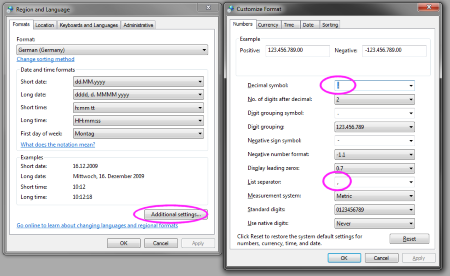
Windows Region and Language Settings - Click link to enlarge
Created on Mar 11, 2010 2:53:02 PM by
Last change on Nov 4, 2014 10:25:54 AM by

Votes:
Sorry, I think that solution 2 is not a "fully" valid one:
Instead, I would say:
/","/ (including quotes) with /";"/
/./ with /,/
Problem is that (at least with my settings) RAW columns and "formatted" columns have different symbols for decimal and third digit symbols.
I'm afraid only 1 and 3 would work without further editing.
Regards Rodeca
Disclaimer: I'm an absolute newbie, so may be I'm messing everything (but I'm now fighting with these reports) ;-)
Disclaimer 2: I tried my best, but sure you'll need to translate _my_ English to _true_ English
Votes:
Add an extra line to your CSV file to tell Excel what the separator is. Add the following line to the top of your CSV file:
sep=;
This will tell Excel to use the ";" character as separator for the next lines. This first line is considered an instruction and not shown in your Excel sheet.
Created on Oct 31, 2010 4:12:25 PM
Last change on Jul 31, 2018 9:50:15 AM by
Votes:
Great. The only reason I signed up for this site is to give a upvote to the "Fourth solution", but the site is telling me I need more points for that.
The "Fourth solution" works! And it is so simple and it works with a little change. I downloaded a CSV spreadsheet from the US and tried to open it with my MS Excel 2010. It did not work. Solution #2 did not work for me, too.
But solution #4 works if you do the following:
1. Open the CSV file via a simple text edit / note pad editor. 2. Go to the first line and add above that line a new line with sep=, (with a comma, not with a semicolon). In my case it worked this way. My CSV was comma separated. 3. Save the file and open it with Excel 4. Win
Votes:
Thanks for your feedback and intended upvote. (upvoted your reply instead :-)
The semicolon was only intended as example and can be replaced by any character being the real separation character in your CSV file.
I'm glad this worked for you.
Votes:
I would give the sep answer an upvote, but I need 15 rep. IMO this is the best solution as it will make your app UNIVERSAL
Votes:
None of these solutions work for me, and the "best" solution is not a good solution at all as it only works with Excel, and no product that generates a csv will add that line to the front.
I have a US version of Windows in the USA, and my control panel Regions and Language settings already have the decimal point as (.) and list separator as (,). My CSV has commas to separate fields (it was generated by SQL Server Management Studio) and still imports to Excel all in the first column. In addition, some of the lines are long enough that Excel wraps them into two rows.
Need a real solution.
Votes:
Mark, is this related to our PRTG Network Monitor? Are the CSV originating from it? CSV is comma-separated-values, one can only try to work with the options Excel offers: http://superuser.com/questions/407082/easiest-way-to-open-csv-with-commas-in-excel
Votes:
Even though the solution proposed might work in this instance, you might corrupt your data in other ways while using this method. I've written an in depth article on why loading CSV files into Excel using the default settings is a bad idea, and what you can do about it:
Summary: Never let Excel open csv files automatically, always -always- use import from text, and manually set the encoding, delimiter and encapsulation
Votes:
The fourth solution would be fine, except that it is not allowed when the file starts with a ByteOrderMark (BOM) to indicate the file contains UTF-8. Is there a way to use both features?
Votes:
We know no solution for this. Overall, solution #3 is the easiest once set up, however this can mess with other applications (for example when a decimal point is required when before a comma was accepted, too.)
Votes:
In addition to Solution #3, also ensure that "Use system separators" is checked under Advanced setting.
Check your Excel Advanced setting:
File -> Options -> Advanced
Make sure "Use system separators" is checked.
For me, this setting was not checked. After checking this setting I am able to view csv file.
Thank you
Created on Apr 21, 2017 6:34:44 AM
Last change on Apr 21, 2017 12:40:16 PM by

Votes:
The region and language setting and changing decimal symbol and list separator finally solved the problem I have had for ages. A big thank you for the help here!
Votes:
To help people with the dotted lines under a column header issue:
STORED PROCEDURE CODE:

BEGIN
    SET NOCOUNT ON;
      select 'sep=','';                                                    -- Separator = comma
      select 'CustomerID','CustomerName' ;          -- Separate select for header row
    SELECT [CustomerID],[CustomerName]
        FROM [WideWorldImporters].[Website].[Customers]
   END;

IN A STEP ON SQL SERVER AGENT JOB YOU NEED THE FOLLOWING:

@query_result_separator = ',',           -- same separator (comma) as in stored procedure (sep=',')
@query_result_header = 0,               -- no query result header


~~~
This results in a csv file as follows:
sep=,
CustomerID,CustomerName
12,Tailspin Toys - Biscay
10,Tailspin Toys - Wimbledon
which opens just fine in Excel
Created on Mar 10, 2023 6:59:04 PM
Last change on Mar 14, 2023 7:17:52 AM by

©2024 Paessler AG Terms & Conditions Privacy Policy Legal Notice Download & Install

Add comment